




kyln
Members
-
Joined
-
Last visited
-
-
-
-
-
-
-
-
-
-
-
-
-
-
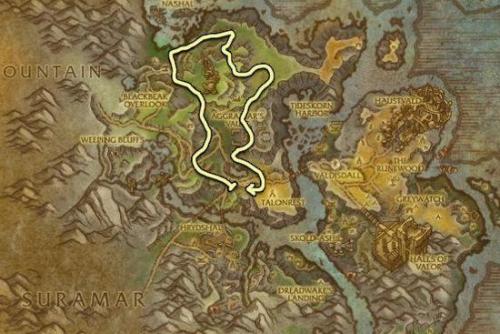 Ah I understand now. If you could provide a screenshot of the location I could globally blacklist it for the future perhaps.
 -
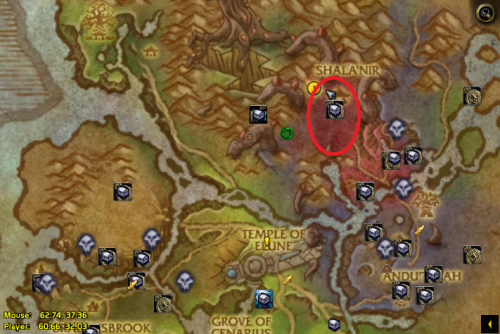 Yes, this grinder is still in working condition and still yields great amounts of Dreamleaf and Yseraline Seeds.
 -
I'm sorry, I don't understand your inquiry. Could you explain your issue a bit better or provide screenshots so that I may be able to help?
-
Because you're in Suramar?
-
-
-
-
Download the only profile available now, and you should avoid the bridge with the death wolves. Simple simple :)
-
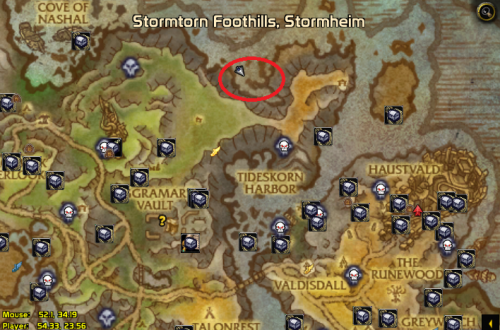 *shrug*, I stopped checking the area since I created the new location. But if there are no hostiles in the Straits, then feel free to use that location as well! :D Swap accordingly.
 -
@octevius Done. Check the downloads.
-
You downloaded the wrong version.
-
You downloaded the wrong version, then.
-
Try the Non-Nithogg version, now that the world boss has changed.
-
Yes. This path takes you near a couple of rares in the area. Please make sure that your character is equip to handle these encounters.
-
Sounds like a settings issue. Please make sure all your settings are as follows in my description. Please make sure you have an appropriate fight class as well. I have ran this profile for over 72hrs+ and have not had any issues like that thus far.
-
 kyln reacted to a review on a file:
(Updated) 100-110 Stormheim Grinder - Shipwreck Coast - Crab Genocide (Skinnable)
kyln reacted to a review on a file:
(Updated) 100-110 Stormheim Grinder - Shipwreck Coast - Crab Genocide (Skinnable)
-
kyln reacted to a review on a file:
(Updated) 100-110 Stormheim Grinder - Shipwreck Coast - Crab Genocide (Skinnable)
-
-
@arezz @Izzy_29 @da8ball I created a new profile and re-did the pathing, it should correctly avoid Nithogg. Not sure why the blacklist didn't work previously, it did avoid him during the test run. Test it out now.
-
Glad it's working for you!
-
You have to make sure "Skin/Gather/Mine Mobs" is selected in the options.