




robot1992
Members
-
Joined
-
Last visited
Everything posted by robot1992
-
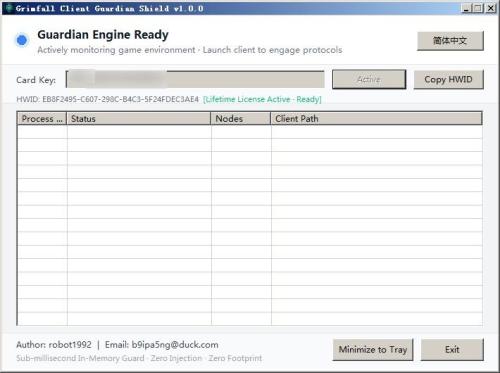 Author: robot1992 Email: [email protected] Try it for free for one day: https://115202.xyz/#/?prod=prod_1789627656625 This tool just gets WR working on Grimfall. The implementation of automation functions needs to be done by yourself through WR. Or you can ask on the WR forum if a certain function can be implemented with WR. Important: Ensure you select "No DX Hook" mode during startup.
 -
ascension COA fight class Ranger.
-
https://wrobot.eu/files/file/2079-paidmake-wrobot-work-on-ascension-live-and-epoch-wow-httpsascensiongg/
-
 Ascension probably doesn't need this, since its epoch originally requires rewriting the combat CC anyway, if there is a need, you can email me or DM me.
 -
@chronic743 try this extra fix version.ascension_wrobot_fix.exe
-
Close all plugins and use a simple basic combat CC test to check.
-
try this: https://wrobot.eu/files/file/2079-paidmake-wrobot-work-on-ascension-live-and-epoch-wow-httpsascensiongg/
Yes. The free use is over. If you want to use it, you need to pay for it.
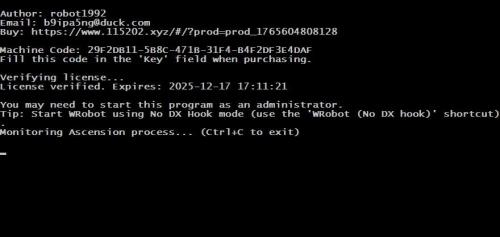 Author: robot1992 Email: [email protected] You may need to start this program as an Administrator. update version 3.0 Add optional v4 version (try fix animate crash, or you can try reduce foreground FPS.) Support Live and Epoch COA. conquestreborn.com and https://ascension.gg Try it for free for one day: https://115202.xyz/#/?prod=prod_1765604808128 This tool just gets WR working on Ascension. The implementation of automation functions needs to be done by yourself through WR. Or you can ask on the WR forum if a certain function can be implemented with WR. Ascension WRobot Fix: Setup & Usage Guide Part 1: License Activation Run ascension_wrobot_fix.exe. Copy the Machine Code displayed in the window. Visit the registration page: Click Here. Select the Free Duration option. Paste your Machine Code into the field labeled License Key. Enter your email address and click Checkout. Click Complete Payment to finish (no charge). Part 2: How to Start Close and reopen ascension_wrobot_fix.exe. Log in to the Ascension game client. Launch WRobot. Important: Ensure you select "No DX Hook" mode during startup.
fixed
version 2.0 has updated, now it can fix all spells. @src000 @nax hi, I've changed the obfuscation method. Can you try to deobfuscate it simply? thanks.
you can try stop and restart WR.
@nax all, ``` var spell = new Spell("Heroic Strike"); spell.Launch(); // this plugin ensures that the `Launch` method works correctly in Turtle wow. ``` btw, any good .net obfuscation tools recommand? @naxI have resolved this issue and provided a plugin. https://wrobot.eu/files/file/2067-fix-turtle-spell-name/I have resolved this issue and provided a plugin. https://wrobot.eu/files/file/2067-fix-turtle-spell-name/
Correcting the issue of inability to properly cast spells in Turtle WoW, fixing spell names in Turtle WoW processing the names of learned skills. Ensuring spells can be cast correctly. version 2.0 has updated, now it can fix all spells. version 3.0 has updated version 4.0 has uploaded (paid version) 2026/3/5 Try it for free for one day: https://www.115202.xyz/#/?prod=prod_1772634470812 The key to bind the WRobot, with the key filled in with the WRobot Key first 10 digits. fix topic:The problem is the multilingual in `Spell.dbc`. the wow client is en-US, but the spell.dbc has multilanguage. if I clear the Name_deDE, the problem is gone. So the problem is that the skill names read by WR aren't being fetched according to the client's actual language.
Author: robot1992 Email: [email protected] You may need to start this program as an Administrator. update version 3.0 Add optional v4 version (try fix animate crash, or you can try reduce foreground FPS.) Support Live and Epoch COA. conquestreborn.com and https://ascension.gg Try it for free for one day: https://115202.xyz/#/?prod=prod_1765604808128 This tool just gets WR working on Ascension. The implementation of automation functions needs to be done by yourself through WR. Or you can ask on the WR forum if a certain function can be implemented with WR. Ascension WRobot Fix: Setup & Usage Guide Part 1: License Activation Run ascension_wrobot_fix.exe. Copy the Machine Code displayed in the window. Visit the registration page: Click Here. Select the Free Duration option. Paste your Machine Code into the field labeled License Key. Enter your email address and click Checkout. Click Complete Payment to finish (no charge). Part 2: How to Start Close and reopen ascension_wrobot_fix.exe. Log in to the Ascension game client. Launch WRobot. Important: Ensure you select "No DX Hook" mode during startup.
fixed
version 2.0 has updated, now it can fix all spells. @src000 @nax hi, I've changed the obfuscation method. Can you try to deobfuscate it simply? thanks.
you can try stop and restart WR.
@nax all, ``` var spell = new Spell("Heroic Strike"); spell.Launch(); // this plugin ensures that the `Launch` method works correctly in Turtle wow. ``` btw, any good .net obfuscation tools recommand? @naxI have resolved this issue and provided a plugin. https://wrobot.eu/files/file/2067-fix-turtle-spell-name/I have resolved this issue and provided a plugin. https://wrobot.eu/files/file/2067-fix-turtle-spell-name/
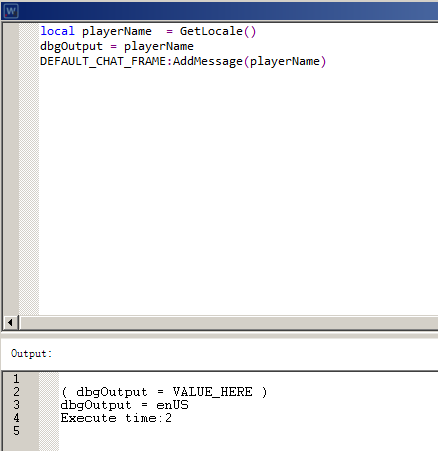
Correcting the issue of inability to properly cast spells in Turtle WoW, fixing spell names in Turtle WoW processing the names of learned skills. Ensuring spells can be cast correctly. version 2.0 has updated, now it can fix all spells. version 3.0 has updated version 4.0 has uploaded (paid version) 2026/3/5 Try it for free for one day: https://www.115202.xyz/#/?prod=prod_1772634470812 The key to bind the WRobot, with the key filled in with the WRobot Key first 10 digits. fix topic:The problem is the multilingual in `Spell.dbc`. the wow client is en-US, but the spell.dbc has multilanguage. if I clear the Name_deDE, the problem is gone. So the problem is that the skill names read by WR aren't being fetched according to the client's actual language.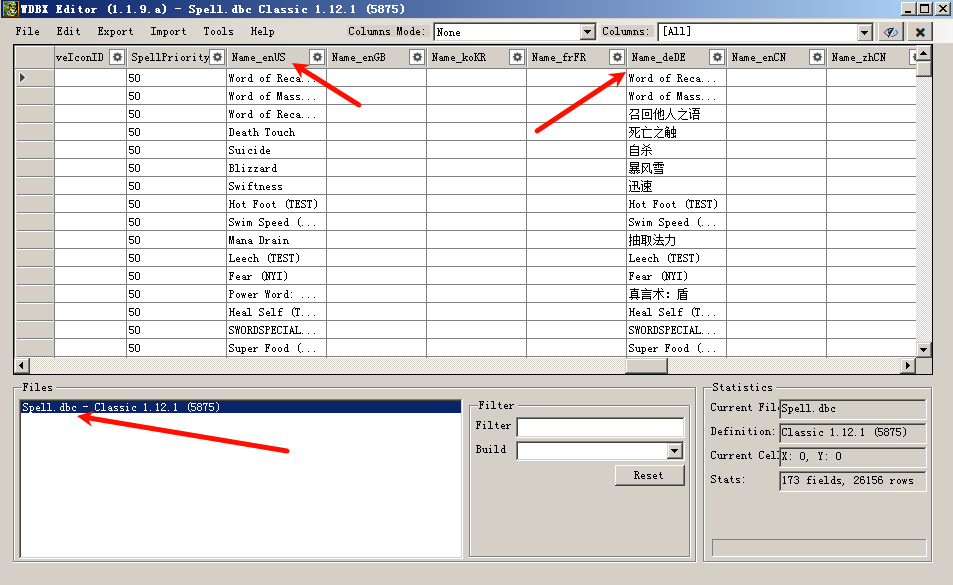


Account
Navigation
Search
Configure browser push notifications
Chrome (Android)
- Tap the lock icon next to the address bar.
- Tap Permissions → Notifications.
- Adjust your preference.
Chrome (Desktop)
- Click the padlock icon in the address bar.
- Select Site settings.
- Find Notifications and adjust your preference.
Safari (iOS 16.4+)
- Ensure the site is installed via Add to Home Screen.
- Open Settings App → Notifications.
- Find your app name and adjust your preference.
Safari (macOS)
- Go to Safari → Preferences.
- Click the Websites tab.
- Select Notifications in the sidebar.
- Find this website and adjust your preference.
Edge (Android)
- Tap the lock icon next to the address bar.
- Tap Permissions.
- Find Notifications and adjust your preference.
Edge (Desktop)
- Click the padlock icon in the address bar.
- Click Permissions for this site.
- Find Notifications and adjust your preference.
Firefox (Android)
- Go to Settings → Site permissions.
- Tap Notifications.
- Find this site in the list and adjust your preference.
Firefox (Desktop)
- Open Firefox Settings.
- Search for Notifications.
- Find this site in the list and adjust your preference.