
Skip to content
View in the app

A better way to browse. Learn more.

WRobot

A full-screen app on your home screen with push notifications, badges and more.

To install this app on iOS and iPadOS
  1. Tap the Share icon in Safari
  2. Scroll the menu and tap Add to Home Screen.
  3. Tap Add in the top-right corner.
To install this app on Android
  1. Tap the 3-dot menu (⋮) in the top-right corner of the browser.
  2. Tap Add to Home screen or Install app.
  3. Confirm by tapping Install.

WRobot - Official

1 Screenshot

WRobotsiteLogoCONTOUR.png

More info: here

Change Log:  here

We support all Windows versions, from Win Vista to Win 11.

You can found list of supported game versions here: https://wrobot.eu/supported-wow-versions/

You can check the status of WRobot on your server here: https://wrobot.eu/byme/CompatibilityReporting/

Install notes:

Quote

Installation:

  • Download and Unzip (extract) "WRobot.zip" on your computer.
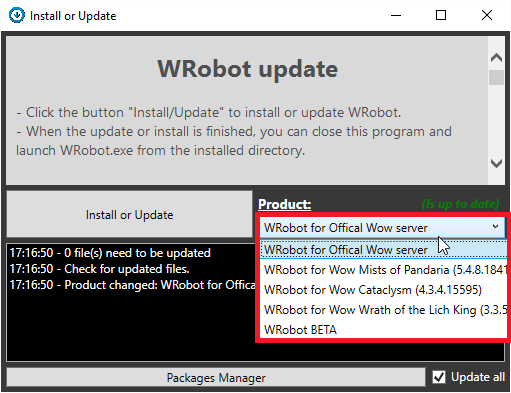
  • Launch program "Updater" (in "WRobot" folder).
  • Select version in "Product".
  • Click the button "Install/Update" to install or update WRobot.
  • When the update or install is finished, you can close this program and launch WRobot.exe from the installed directory.
Quote

Required programs on your computer for running WRobot:

WRobot don't works? go here to repair it.

Don't forget to select your WRobot version in "Update" window.

You can download old version here.

What's New in Version 09/28/21 02:12 PM

Released

No changelog available for this version.

User Feedback

Recommended Comments

zerglling1

Members

Got today, Used for about 8 hours so far tested a little of everything, Few bugs but not rly many , Feeling pretty safe with this product n and enjoy it so far , Great community Thank for making it!:wub:

Little Nana

Members

I do not see the trial version. why?

16 minutes ago, Little Nana said:

I do not see the trial version. why?

Hello, only on WRobot for private server, not trial version for WRobot for official wow server.

Little Nana

Members

49 minutes ago, Droidz said:

Hello, only on WRobot for private server, not trial version for WRobot for official wow server.

Can you give a trial KEY? Even for an hour, I'm not sure whether to use

hugojiayiwang

Members

21 hours ago, Little Nana said:

Can you give a trial KEY? Even for an hour, I'm not sure whether to use

It's working in 7.0 

BetterSister

Elite user

1 hour ago, Lina13 said:

How to get TRIAL key???

you can't for live game only for private servers

Crysix

Members

Hey, i play on private server, but how to get the TRIAL key?

23 minutes ago, Crysix said:

Hey, i play on private server, but how to get the TRIAL key?

Hello,

  1. Launch Wow in 32 bit.
  2. Launch "\WRobot\WRobot.exe".
  3. Click on button "Launch Bot".
  4. An window appear, if textbox is empty, you need to put text "TRIAL".
  5. Click on "Login" bouton.

BetterSister

Elite user

12 hours ago, capnmarvel said:

how can i use the trial ?

Wrong place for such questions but you can't on retail. on private servers use key "TRIAL"

chrisschulze

Members

for some reason ime not allowed to download profiles do I need to buy something with the email ime logged in as I have a lifetime code alrdy?


12 hours ago, chrisschulze said:

for some reason ime not allowed to download profiles do I need to buy something with the email ime logged in as I have a lifetime code alrdy?


Hello, you need active WRobot subscription to download WRobot files (profiles and figthclasses).

Enderstep

Members

Doesn't this needs to be updated ? I cannot use it for my Legion Private Server. Or is it me ?

14 hours ago, Enderstep said:

Doesn't this needs to be updated ? I cannot use it for my Legion Private Server. Or is it me ?

WRobot for Legion currently supports only Wow version of retail server.

Create an account or sign in to comment

Account

Navigation

Search

Search

Configure browser push notifications

Chrome (Android)
  1. Tap the lock icon next to the address bar.
  2. Tap Permissions → Notifications.
  3. Adjust your preference.
Chrome (Desktop)
  1. Click the padlock icon in the address bar.
  2. Select Site settings.
  3. Find Notifications and adjust your preference.